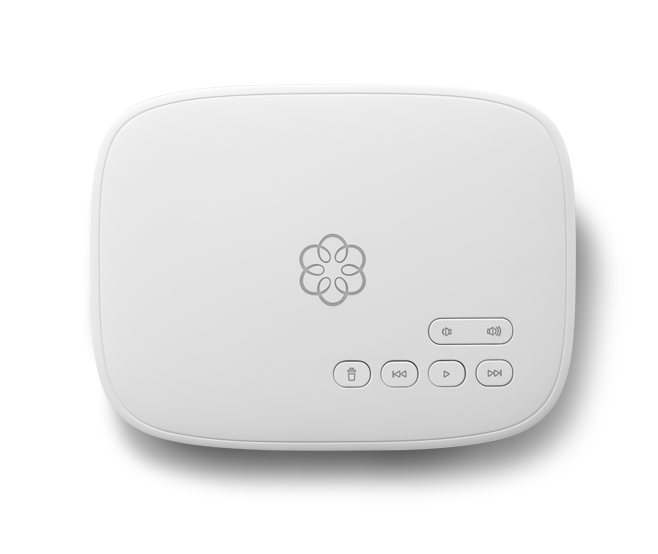
MyPhone by Ooma activation and setup
Package Contents
Double check the contents of your package against the included Quick Start Guide to make sure you have everything you need before you get started. You should have:
- An Ooma Base Station
- An Ethernet cable
- An AC adapter
- A MyPhone telephone
Activate Online
Begin by using your smart phone to scan the QR code included in the Quick Start Guide to download the Ooma Setup App.
When you’ve installed the app, the activation wizard will guide you through:
- Selecting a phone number
- Registering your 911 address
- Adding billing information
- Creating your My Ooma account
You will also be prompted to set up your Trusted Circle, 911 Alerts for text, email, or both, and Quiet Hours right away.
You’ll receive an email confirmation once your device is activated.
[OPTIONAL] Connect Ooma Base Station to Your Router
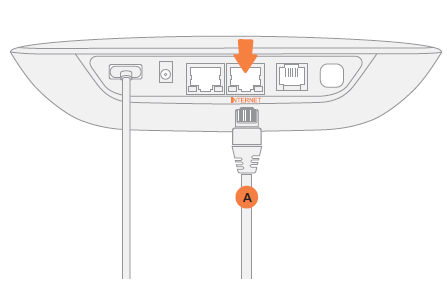
Your Ooma Base Station is wireless, but you can connect it to your router if you’d like. Use the included Ethernet cable  to connect the INTERNET port of the Base Station to an open Ethernet port on your router:
Connect Your Phone to the Base Station
Use the included phone cable to plug the MyPhone corded telephone into the PHONE port.
Power on
Plug the provided AC adapter  into the POWER port:
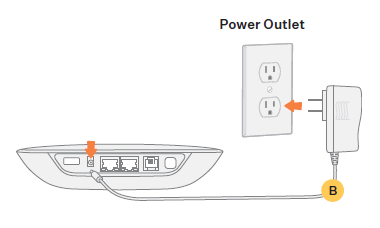
It is normal for the lights on the Base Station to blink for a couple of minutes while it boots up.
The light on top of the device will light up blue once the device is ready to be used. Pick up the phone and listen for the musical Ooma dialtone to confirm that your set up is complete.
FAQs
If you have questions while you are activating your account, these FAQs may be of help to you: