
Using Ooma with Zapier Overview (Pro Plus)
Ooma Office is now available as an app on Zapier, which means you can set up automated connections between Ooma Office and thousands of other apps through the Zapier interface. This article will help you understand what Zapier is, and how you can use the site to set up connections. The possibilities are nearly infinite, so we’ll provide you with a few examples to help you get started.
- What is Zapier?
- What is a Zap?
- How much does it cost to use Ooma Office with Zapier?
- What types of businesses can benefit from connecting Ooma Office and Zapier?
- How is using Zapier different than an Ooma Office integration?
- How does the connection between Ooma Office and Zapier work?
- How can I use Ooma Office with Zapier?
- How can I set up an example Zap?
- Where can I get help learning to use Zapier?
What is Zapier?
Zapier is an online “middleware” platform that lets you link web apps together using workflows called Zaps. They have a library of over 8,000 apps that can connect to one another. Creating your own Zaps is easy; you don’t have to know how to code or use AI.
Once you’ve connected your Ooma Office account to Zapier, you can connect Ooma Office call and text events to any of the third-party applications that Zapier supports.
What is a Zap?
A Zap is a workflow that connects two apps together so you can automate tasks. Here are some Zaps you could create with Ooma Office:
- Create a log of your Ooma Office calls in Google Sheets with a new row for each call
- Send your Ooma phone number a text message any time a row in a Google Sheet is updatedPRO
- Receive a text whenever a there’s an update in your CRM like Trello, Asana, or SalesforcePRO

These are just a few examples. The sky’s the limit as you discover new ways to integrate Ooma Office with other apps you use every day.
How much does it cost to use Ooma Office with Zapier?
Any Ooma Office account tier can set up Ooma Office with Zapier for free!
Sending SMS messages through Ooma Office is a feature that is available in the Pro account tier and higher. Your account will be charged accordingly if you exceed your texting limit.
Zapier’s Free plan includes 100 Zaps a month. If you’d like to learn more or if you think you’ll need more than 100 Zaps a month, you can review the pricing structure for Zapier on their Plan Builder page.
What types of businesses can benefit from connecting Ooma Office and Zapier?
By using Zapier to connect key Ooma Office calling and texting events to other applications, you have access to additional workflows to help track and analyze communications to and from Ooma Office.
Existing users can enrich their experience with Ooma Office by connecting to internal communications or customer applications like Slack or Google. They can also continue a workflow to connect to other applications using AI tools.
How is using Zapier different than an Ooma Office integration?
Zapier shares select Ooma Office data with whatever third party application you connect to. This data transfer doesn’t create a permanent link, and it isn’t stored once the data transfer is complete. This is extremely useful in many cases, but it doesn’t fully replace the additional development work Ooma’s team does for full-scale integrations. For example:
- Zapier does not support advanced UI features like Caller ID modals that appear in Ooma Office for incoming and outgoing calls, Contact Synching, and taking/saving notes to the CRM during a call.
- You are responsible for the setup and management of Zapier connections. While it is an intuitive process, it does require some knowledge of how backend API connections work as well as ongoing maintenance by an admin.
- Zapier Connection and Trigger count pricing is not set by Ooma. Your cost may vary based on how frequently you access Zapier for Triggers and Actions.
How does the connection between Ooma Office and Zapier work?
If you don’t already have an account with Zapier, visit the site here.
You can either start with your email address using the  button, or you can use your Google account to log in with the
  button.
Once you’ve got a Zapier account, visit the Ooma Office integrations page. You’ll see a couple of Zap Templates to help get you started:
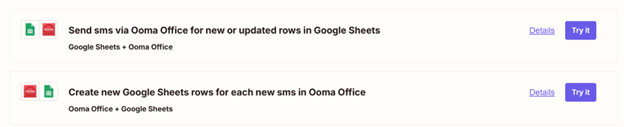
When you select  on any of the templates, Zapier will do all the hard work of setting the Zap up for you. All you’ll have to do is give Zapier permission to log into your Ooma Office account and any other accounts you’re connecting.
How can I use Ooma Office with Zapier?
Zapier has several different ways of connecting services. The hearts of those connections are Triggers and Actions:
• Triggers start a Zap. For example, an Ooma Office trigger might be receiving a phone call or a text message on your Ooma number. • Actions are what happens when an event has been triggered. For example, an Ooma Office action might be sending a text message to your Ooma phone number.
Think of Triggers and Actions like an if/then statement. If the Trigger event occurs, then the Action event happens.
Ooma Office currently has three Triggers and one Action:
• [Trigger] New Call: Triggers when a new call (inbound or outbound) occurs. • [Trigger] New SMS: Triggers when an SMS message is sent or received[pro]. • [Trigger] Call Ended: Triggers when a call ends, including when the call is missed. • [Action] Send SMS: Sends an SMS message when a Trigger from another app is fired[pro].
You can narrow any of these Triggers or Actions down further with filters. For example, you could filter a Trigger on New Call so it only acts on calls from a specific person.
Keep in mind that some of these Triggers and Actions may require an Ooma Office Pro account subscription or higher. SMS messaging must also be set up by an account admin before it is available to use through Zapier.
How can I set up an example Zap?
In this example, we are connecting Ooma Office’s New Call Trigger to Microsoft Outlook’s Create Contact Action.
Start by finding the New Call Trigger from the Ooma Office integrations page. Hit the button to begin configuring the Zap:
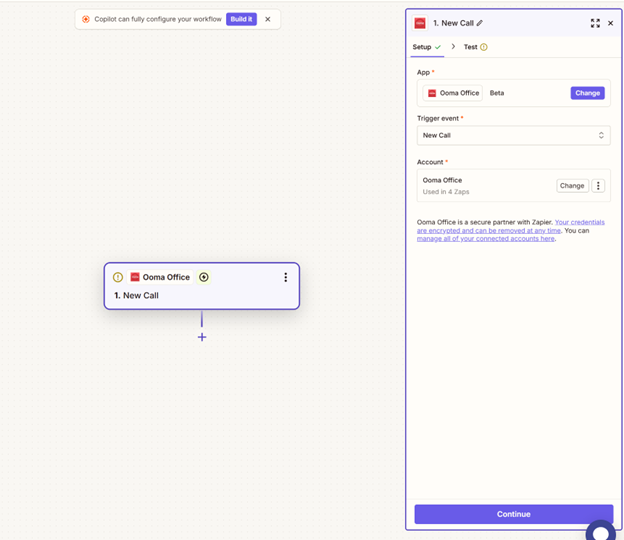
Then, use the  button beneath the trigger to add the app your Zap will interact with. Search for Microsoft Outlook and choose Create Contact as your Action.
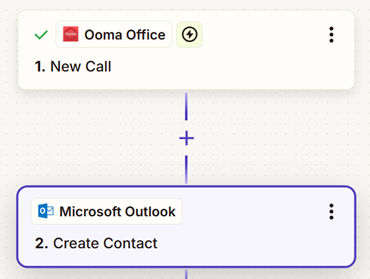
Now we can set up Microsoft Outlook to use data from Ooma Office to create that contact:
That’s it! You can use the  button to test your Zap to make sure everything works. If you’re happy, you can use the
  button to turn the Zap on. It’ll work automatically, so you don’t need to do anything else.
Where can I get help learning to use Zapier?
We’ve put together some video tutorials to help you get started with Zapier:
The Ooma Customer Care Team can help you with Ooma-specific aspects of Zapier, including the Ooma Office Triggers and Actions.
If you’d like more help using Zapier beyond the scope of Ooma Office, you can search their Knowledge Base or you can contact their Support team.